Guided trade review and saved views
Review a scoped queue, save notes reliably, and restore your filters and layout on this browser.
Start a review
Open Journal and choose your shared account, date, timezone, strategy, tag, symbol, outcome, and hour filters. The shared-filter summary shows the current scope. Choose Start review queue after the complete sample loads. Queue membership follows shared filters and closed trades; journal column filters remain separate.
Each trade offers replay, notes, tags, and Mark reviewed and next. Completion is explicit: adding a note or a tag alone does not mark a trade reviewed. Skip without completing advances while keeping that trade unreviewed. You can reopen a queued trade and choose Mark unreviewed.
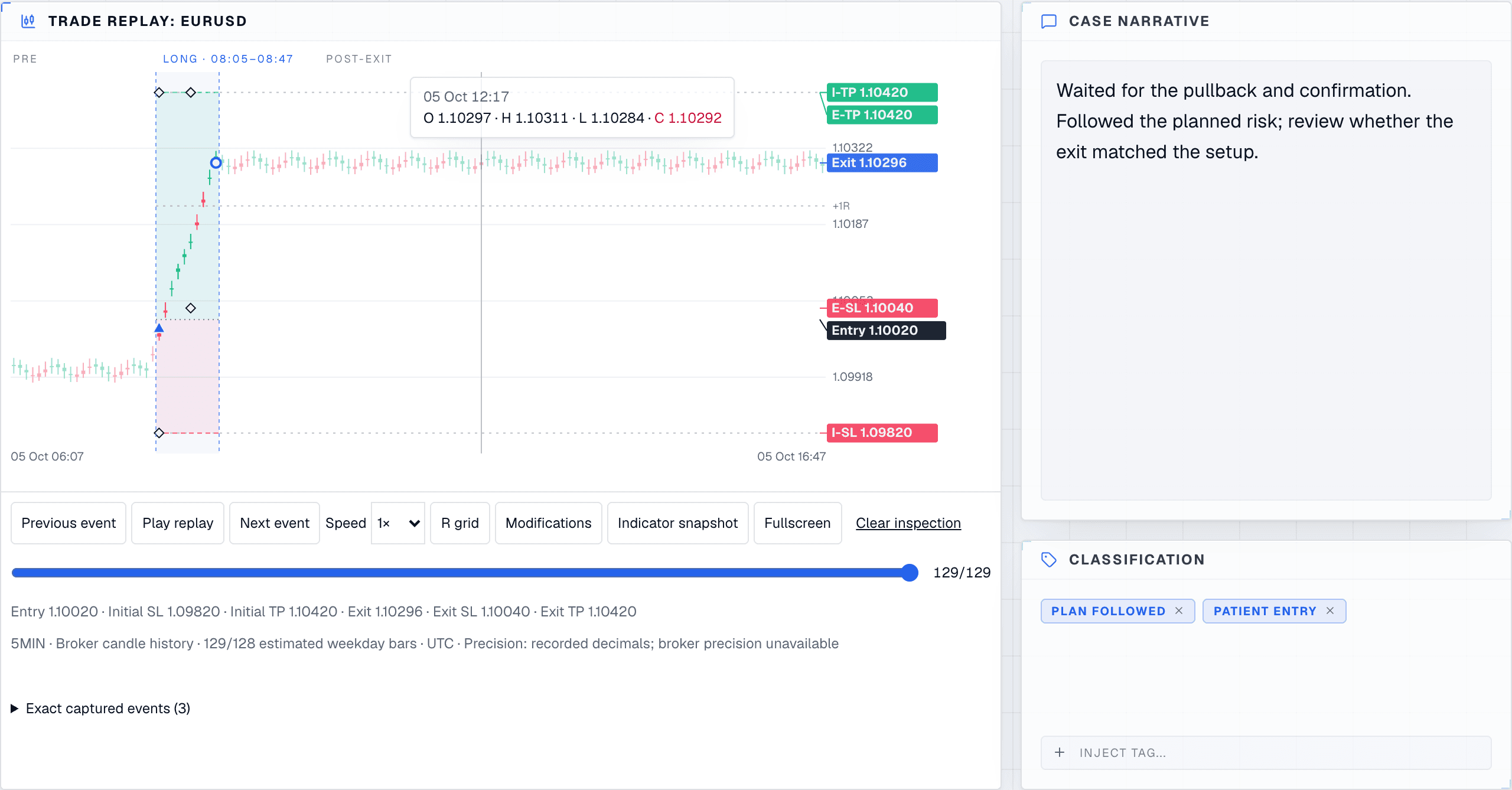
Synthetic example data: inspect the captured candle history, then record notes and explicitly complete the review.
Notes and failed saves
Notes autosave and remain as a pending draft during navigation. Marking a review complete or skipping waits for pending notes to save successfully. A failed note save keeps you on the current trade and offers retry. Pending or failed tag and strategy changes must finish successfully before progression. If browser storage is blocked or full, completion cannot be recorded; enable storage or free space and retry.
Keyboard shortcuts
While a queued trade is open:
| Shortcut | Action |
|---|---|
| Alt+R | Focus the replay control |
| Alt+N | Focus trade notes |
| Alt+T | Focus the tag field |
| Alt+Enter | Save pending notes, mark reviewed, and open the next unreviewed trade |
| Cmd/Ctrl+S in notes | Save notes now |
Buttons provide the same actions. Replay depends on available candle data; an unavailable replay does not imply that the trade has been reviewed.
Saved views and comparisons
The Review context tray shows your shared-filter scope while collapsed. Expand its Saved views & comparisons disclosure, enter a Saved view name, and choose Save filters and layout.
Named views and reviewed state are saved only in this browser, separately for each signed-in account. They do not sync to another browser or device; clearing site data removes them. Notes and tags are saved to your account.

Synthetic example data: the collapsed tray keeps the active review scope visible.
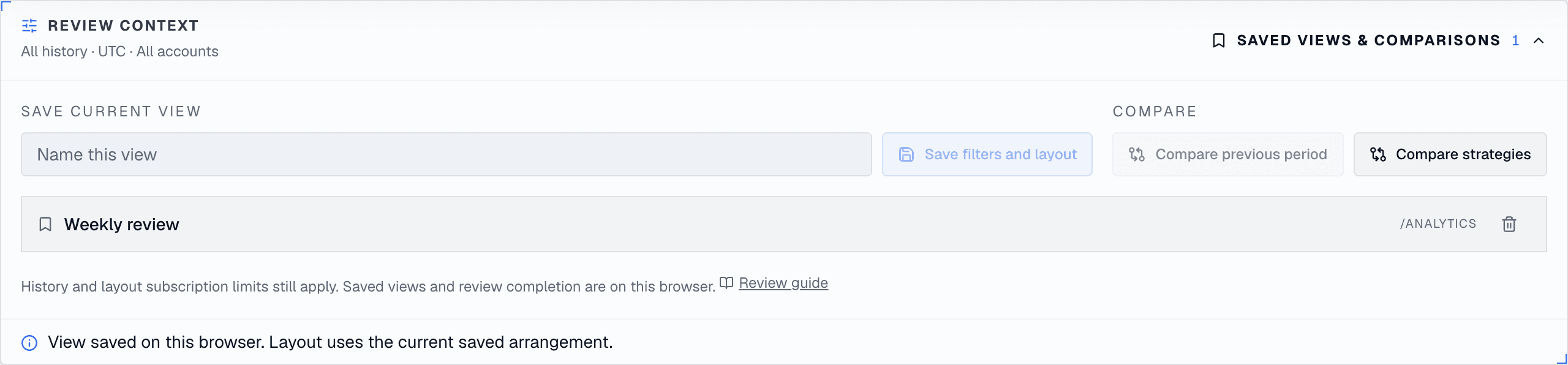
Synthetic example data: expand the tray to save or restore a view and choose a comparison.
A view captures shared filters, the active period or strategy comparison, and the current saved arrangement of visible boards. Save any active layout edits first. Restoring a view retains your plan's customization restrictions: visibility-only plans retain authoritative geometry and configuration, and plans without layout customization restore filters only. Local views never replace an administrator's global default layout.
Compare previous period is disabled when an explicit trading session is selected; clear that session to compare periods. It compares complete closed-trade samples for equally sized calendar windows in the selected timezone. Compare strategies compares two selected strategies under the remaining shared filters. Access/history limits apply independently to both sides. Comparison totals use account units; choose a single account when amounts from different accounts cannot be combined meaningfully.
All history means all history accessible under your plan. It is not a ten-year cutoff. An all-history selection cannot compare an equally sized previous period; select a finite date window first.
Browser-local limits
Reviewed state, queue membership, and named views are stored on this browser, separately for each signed-in account. They are not synced to another device or browser. Clearing site data removes them. Notes and tags remain trade data saved to your account. A queue reflects its captured accessible sample; refresh or start a new queue after new trades arrive. Returning to Journal preserves shared-filter context, including cross-filters.
If saved browser data is invalid, the interface reports it and offers a reset. Reset removes browser-local reviewed state and named views for the current account; it does not delete trades or saved notes.
Browser review writes use Web Locks and compare the captured state with the latest stored revision. If another tab changes reviews, views, or the queue while a note is saving, completion aborts with retry and preserves the newer state. Browsers without Web Locks report that review persistence is unavailable; no unsafe fallback overwrites browser data.